Article contents
- In short
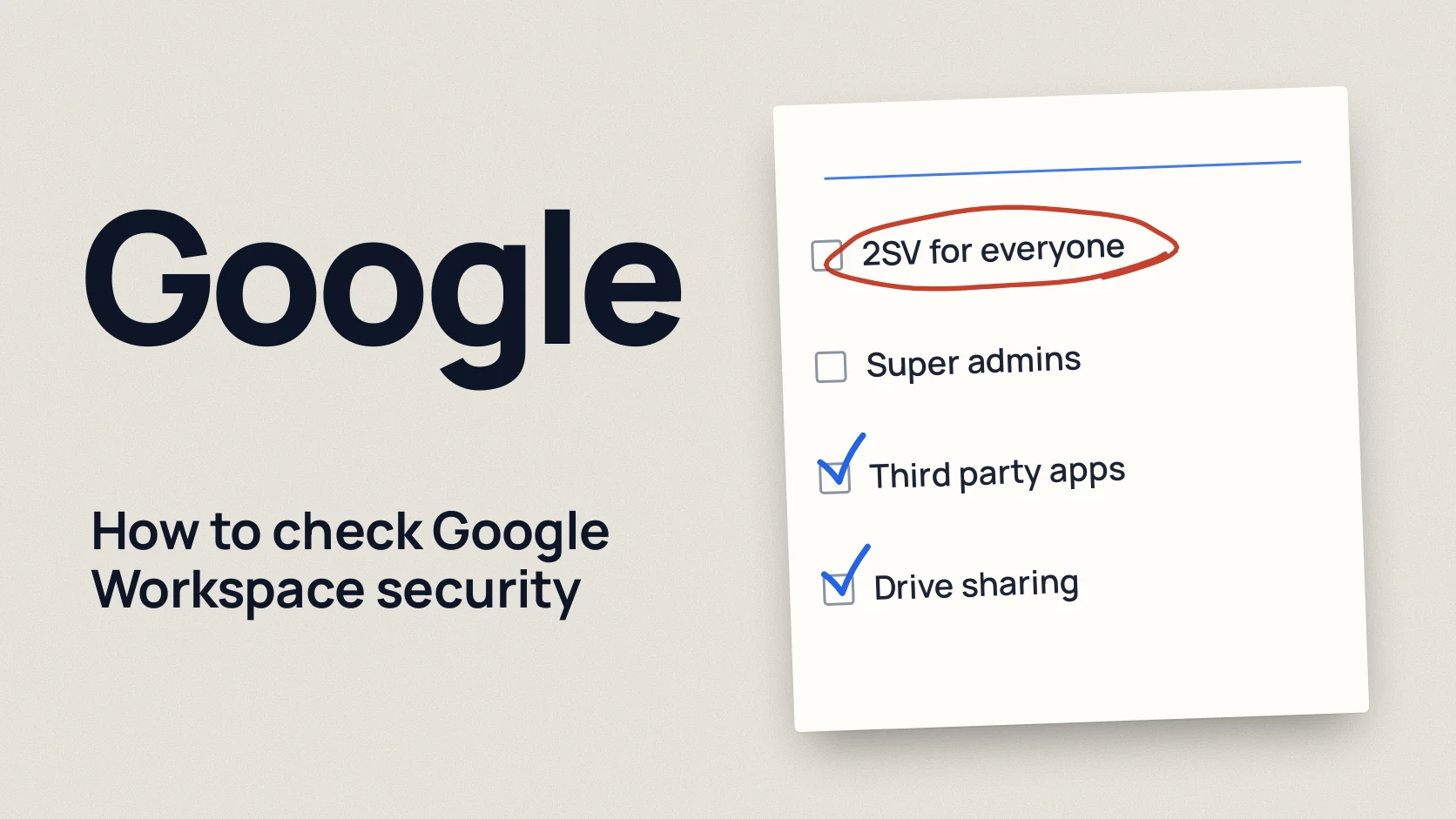
- The six checks at a glance
- 1. 2-Step Verification is enforced for everyone
- 2. How many super admins, and who they are
- 3. Third party apps with access to mail and files
- 4. External sharing in Drive
- 5. Mail forwarding to outside addresses
- 6. Someone reviews login logs and alerts
- Common mistakes
- What to fix first
- One hour checklist
- FAQ
- References
You can check Google Workspace security yourself in about an hour: six checks in the Google Admin console show whether logins are protected, who holds full rights, which third party apps read your data, whether files and mail are leaking and whether there will be a trail after an incident. Each check below has a clear good and bad result, so you see at once what to fix first.
Below: the console path for each check, a summary table, common mistakes and a checklist.
A Google Workspace administrator can run the checks, or an owner sitting next to one. Some settings are visible only to a super admin. Menu names follow Google’s Admin Help as of October 2026. If an item looks slightly different, type its name into the search bar at the top of the Admin console (admin.google.com).
In short
- 2-Step Verification (a second step after the password) is enforced for everyone, not just allowed.
- Super Admin (full rights over all of Google Workspace) belongs to a few named people, and they do daily work from a separate, regular account.
- Third party apps with access to Gmail and Drive have been reviewed, and the ones you do not need are blocked.
- Drive files are private by default, and external sharing is a deliberate choice.
- Automatic forwarding of mail is off, or someone can explain every forward that exists.
- Login logs get reviewed, and Alert center alerts do not sit unread.
The six checks at a glance
| Check | Where in the Admin console | Good result | Risk if not |
|---|---|---|---|
| 1. 2SV for everyone | Security > Authentication > 2-step verification | Enforcement: On, short enrollment period for new users | One stolen password opens the account |
| 2. Super admins | Account > Admin roles > Super Admin | A few named people, security keys, separate daily account | One phishing email hands over the whole domain |
| 3. Third party apps | Security > Access and data control > API controls | List reviewed, unknown apps Blocked | An unknown service reads mail or files with no password |
| 4. Drive sharing | Apps > Google Workspace > Drive and Docs > Sharing settings | External sharing set on purpose, new files private | Contracts and spreadsheets reachable from outside |
| 5. Mail forwarding | Apps > Google Workspace > Gmail > End User Access | Automatic forwarding off | Copies of mail quietly go to someone else’s inbox |
| 6. Logs and alerts | Reporting > Audit and investigation, Security > Alert center | Someone reviews logins and alerts weekly | A breach is found months later, or never |
1. 2-Step Verification is enforced for everyone
Where to look. Security > Authentication > 2-step verification. Check three things: whether Allow users to turn on 2-Step Verification is ticked, what Enforcement says (On or a start date) and what the New user enrollment period is. That period can be anything from one day to six months, and during it a new user signs in with only a password. [1] Who actually has 2SV is shown in Reporting > User Reports > Security. [1]
Good result. Enforcement is on for the whole organization. The new user period is short. Methods is at least Any except verification codes via text, phone call, so no SMS or call codes. Admins sit in their own organizational unit or group set to Only security key. That option now accepts passkeys too, and Google says passkeys and security keys give the same level of phishing protection. [1]
What a bad result means. 2SV is allowed but not required, so only the people who bother turn it on. An account without a second step opens with a password, and passwords leak through phishing and breached databases. Before switching to Only security key, make sure people already have keys, or they will be locked out.
2. How many super admins, and who they are
Where to look. Account > Admin roles, the Super Admin role, then Admins. This page shows only direct assignments: if the role is given to a group, the group’s members do not appear here. [3] A single person’s roles are visible under Directory > Users, on their user page.
Good result. Google recommends more than one super admin, each account managed by a separate person. [2] Google also recommends giving each super admin two accounts: one for admin tasks and a regular one for everyday work. Admin accounts have 2SV and at least two security keys, with the spare kept somewhere safe. Recovery options are added and backup codes printed. [2] For a small company two super admins are usually enough, and narrower roles cover everything else.
What a bad result means. Super Admin on a former employee, a contractor, a shared account like office@, or the CEO "just in case". Or a super admin reads mail and opens attachments from that account. One successful phishing email then gives the attacker the whole domain: mail, files and security settings.
3. Third party apps with access to mail and files
When someone clicks "Sign in with Google" and grants permission, an outside service can get access to their Gmail, Drive or Calendar. No password is involved, and changing the password does not remove that access.
Where to look. Security > Access and data control > API controls, click Manage App Access, then in Accessed apps click View list. [4] It lists the apps that already have access to your organization’s data. Each can be set to Trusted, Limited, Specific Google data or Blocked. [4] Under Settings in the same section, Unconfigured third-party apps decides what happens with apps you have not configured yet. The default is Allow access to any third-party app. [4]
Good result. The list has been reviewed and someone can explain every app: CRM, accounting, e-signature. The ones you need are Trusted or limited, unknown ones are blocked. New apps are restricted, for example to basic sign-in info only.
What a bad result means. Dozens of apps nobody recognizes, with access to all mail or all of Drive. Anyone in the company can grant any service access in one click. If that service is breached or turns out to be malicious, your mail and files go with it.
4. External sharing in Drive
Where to look. Apps > Google Workspace > Drive and Docs, then Sharing settings > Sharing options. This is where sharing outside the organization is turned on or off, and where you set Allowlisted Domains, the list of trusted partner domains. [5] The same page has Highlight external files, which marks files as external. [5] Then check Sharing settings > General access default: who sees a new file by default. This setting exists in Business Standard, Business Plus, Enterprise and a few other editions. [6]
Good result. External sharing is a deliberate choice: either only to trusted domains, or to anyone with warnings. General access default stays at Private to the owner, also called Restricted. Google calls this the recommended setting for most users, so a file is shared only when it is ready. [6]
What a bad result means. New files open to the whole organization by link, and external sharing allowed to anyone with no limits. That is how contracts, payroll sheets and passport scans end up with people nobody sent them to. Changes to these settings can take up to 24 hours to apply. [5]
5. Mail forwarding to outside addresses
After taking over a mailbox, an attacker often sets up forwarding that quietly sends copies of mail to their own address. The password has been changed, and the mail keeps going. Google explicitly recommends turning off automatic forwarding to reduce the risk of data exfiltration. [8]
Where to look. Apps > Google Workspace > Gmail > End User Access, the Automatic forwarding item, checkbox Allow users to automatically forward incoming email. It is on by default. [7]
Good result. The box is cleared for the whole organization, and the exceptions you need sit in a separate organizational unit for named people. Once it is off, forwarding rules and filters users created stop working. Rules created by admins still apply. [8]
What a bad result means. Forwarding is allowed for everyone, and nobody knows who forwards what where. If you find a forward to a private address that nobody set up on purpose, treat the mailbox as compromised: change the password, end sessions, remove the rule and review the login log. The next steps are in Company email or account hacked: what to do in the first 30 minutes.
The same Gmail section has Authenticate email, where you turn on DKIM, the signature on your outgoing mail. The status should read "Authenticating email with DKIM". Google recommends setting up SPF and DMARC as well. [9] Without them, fake mail in your domain’s name gets through more easily. How the three work together is covered in How to protect company email from phishing.
6. Someone reviews login logs and alerts
Login log. Reporting > Audit and investigation > User log events. It shows successful and failed sign-ins, suspicious logins, and changes to passwords, recovery details and 2SV. [10] The last 7 days are shown by default. Sign-ins from mail clients and other non-browser apps are generally not recorded here. [10] This search works on every edition. The more advanced security investigation tool comes only with some editions, including Enterprise Standard and Enterprise Plus. [10] User, admin and Gmail log events are kept for 6 months. [11]
Alerts. Security > Alert center (admin.google.com/ac/ac). [12] Google sends alerts here about phishing, malicious mail, and suspicious activity on accounts and devices. Alert center is included in every Google Workspace edition. [13]
Good result. Once a week someone reviews admin logins, failed attempts and logins from unusual countries. Alerts in Alert center have a status and an owner.
What a bad result means. Hundreds of unread alerts in Alert center, and nobody has opened the login log. A suspicious login followed by a change to recovery options or 2SV is a reason to change the password and end all sessions right away.
Common mistakes
- 2SV allowed, not required. Allow users is ticked, Enforcement is off. Some people keep signing in with a password only.
- A long enrollment period for new users. Six months of New user enrollment period means half a year of password-only sign-in.
- The super admin works from the admin account every day. Mail, attachments and links get opened from the account that controls the whole domain.
- Nobody has looked at third party apps. Access granted three years ago to a trial service still reads mail.
- Assuming a password change fixes everything. It does not revoke app permissions or forwarding rules set by admins.
- Alert center as a junk drawer. Alerts arrive, nobody owns them.
What to fix first
- Admins without 2SV and security keys: the shortest path to the whole domain.
- Unknown mail forwarding: a leak may already be under way.
- Unknown third party apps with access to mail or Drive.
- 2SV for everyone: give people time to enroll first, then turn on Enforcement.
- External sharing in Drive: change it gradually, after warning people.
These six checks do not cover devices, backups, or how access is granted and removed. We look at those in a Security Assessment. The website, customer area or API that runs next to Google Workspace is tested by a penetration test. Whether your people spot a phishing email that leads to a fake Google sign-in page is what a phishing simulation shows. The same check for the other big platform is in How to check Microsoft 365 security.
One hour checklist
Download the preparation checklist (PDF)PDF · A4
FAQ
How long do these checks take?
For a company of up to a few dozen people, about an hour if the admin knows the Admin console. Fixes take longer: each change should be agreed first and tried on a few people.
What rights do I need for the checks?
The simplest is to run them as a super admin. The role list, 2SV settings and DKIM require that role. Logs, Alert center and API controls can be viewed with narrower privileges granted separately.
Do we need to turn off less secure apps?
No. Since May 1, 2025 Google Workspace no longer accepts third party apps that sign in with just a username and password, and the setting has been removed from the Admin console. [14] Mail apps now connect with OAuth, and office devices such as scanners use OAuth or an app password.
What if we find an app nobody recognizes?
Block it in API controls and find out who granted it access. Look at that person’s login log. If the app had mail access, check whether a forward has appeared.
Does this replace a security assessment?
No, it is a basic self check of settings. A Security Assessment looks wider: access, devices, processes. How people react to phishing is shown by a phishing simulation. Your own websites and apps are covered by a penetration test.
References
- Google Workspace Admin Help: Deploy 2-Step Verification knowledge.workspace.google.com
- Google Workspace Admin Help: Security best practices for administrator accounts knowledge.workspace.google.com
- Google Workspace Admin Help: View role assignments & privileges knowledge.workspace.google.com
- Google Workspace Admin Help: Control which third-party & internal apps access Google Workspace data knowledge.workspace.google.com
- Google Workspace Admin Help: Manage external sharing for your organization knowledge.workspace.google.com
- Google Workspace Admin Help: Set general access sharing options for your organization knowledge.workspace.google.com
- Google Workspace Admin Help: Let users automatically forward their own Gmail emails knowledge.workspace.google.com
- Google Workspace Admin Help: Monitor the health of your Gmail settings knowledge.workspace.google.com
- Google Workspace Admin Help: Set up DKIM knowledge.workspace.google.com
- Google Workspace Admin Help: User log events knowledge.workspace.google.com
- Google Workspace Admin Help: Data retention and lag times knowledge.workspace.google.com
- Google Workspace Admin Help: View alert details knowledge.workspace.google.com
- Google Workspace: Alert center workspace.google.com
- Google Workspace Admin Help: Control access to less secure apps knowledge.workspace.google.com